Hello future podcaster!
Welcome back to the “So You Want To Start A Podcast” series.
In this article you are going to learn how to get your podcast on the internet so that people may listen to it.
Your total cost to upload your podcast to the net will be: Zero dollars!
Everything mentioned in this article is free.
Before we get started, be sure you have reviewed parts 1 and 2 of this series.
In part 1 we discussed the hardware you will need to record your podcast.
In part 2 we discussed the software you need to record your podcast.
If you missed them, check them out here:
- How To Start Your Own Podcast Part 1: Best Podcast Equipment
- How To Start Your Own Podcast Part 2: Recording Your Podcast
If you have read parts 1 and 2 you will now have you mic, your audio interface, you will have already recorded your very first podcast, and you will not have an MP3 file of your podcast ready to upload to the internet.
So where do you upload your podcast?
There are many options to upload your podcast and in this article I will focus on the best 3: iTunes, Soundcloud, and YouTube.
- There are many other places you may want to consider uploading your podcast to, and here is a quick guide for those: How to Submit Your Podcast to Apple Podcasts, Google Play, Stitcher, TuneIn, and Spotify
In this article I am going to give you specific instructions for uploading your podcast to Soundcloud, iTunes, and YouTube.
Let's get started…
How To Upload Your Podcast To Soundcloud
You will need a “Podcast Host” for your podcast.
Soundcloud is the official Podcast Host of the Bold and Determined Podcast.
We have set it up so that any time we upload a podcast episode to Soundcloud it is automatically uploaded to iTunes.
Soundcloud is the easiest place in the world to upload your podcast to.
I recommend all podcasters upload their podcast to Soundcloud because it will make it easy to get your podcast onto iTunes (you cannot upload directly to iTunes).
This is literally you need to do:
- Sign up for an account at Soundcloud
- Click the button that says UPLOAD
- Upload your MP3 podcast
That's it!
You will find the UPLOAD text in the top right corner of your Soundcloud page.
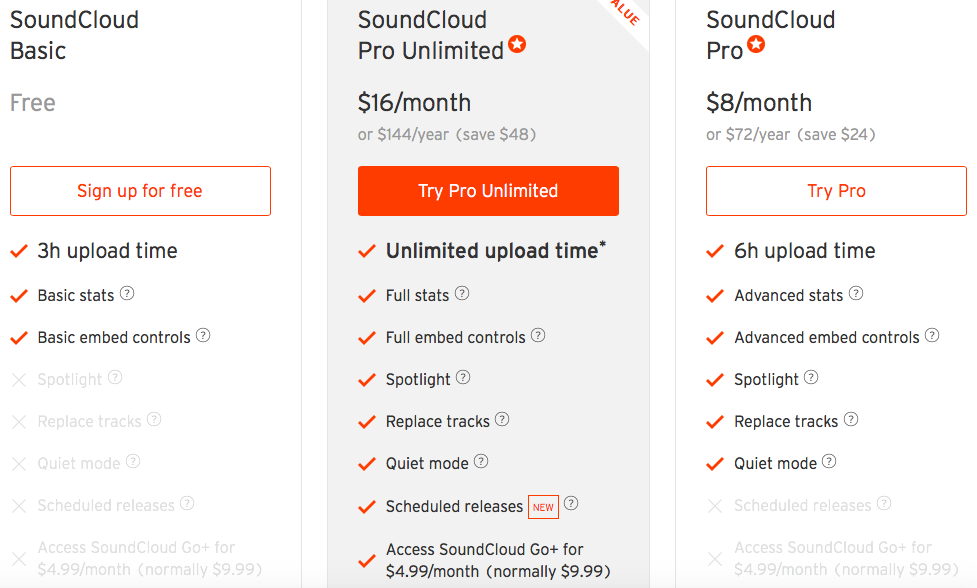
Soundcloud offers 3 different plans.
I recommend new podcasters sign up for the free plan.
If you stick with podcasting you will have to upgrade to a larger plan.
Here are the 3 plans that Soundcloud currently offers.
Congratulations! Your podcast is now live in the internet. You can give your listeners the direct link and they can listen to it at their pleasure.
But what if they want your podcast available on iTunes?
Glad you asked…
How To Add Your Podcast to iTunes
Cost: $0
iTunes is the go to place for millions of podcast listeners around the world and ignoring the potential of having your podcast available on iTunes would be foolish. It's not difficult to do and costs you nothing.
What will you need to add in order to add you podcast to iTunes?
- You will need at least 1 episode of your podcast that has been uploaded to a podcasting host such as Soundcloud, Simplecast, Libsyn, etc. To be clear, iTunes does not host the files for your podcast and merely functions as a sort of podcast feed aggregator.
- That brings us to item number two - You will need the RSS feed URL for your podcast which is provided by your podcast host. Locate the feed URL and copy it somewhere for easy reference. If you plan to add your podcast to multiple outlets you'll be using this URL often.
- You will need an Apple ID. If you don't already have an Apple ID you'll need to download iTunes and create one.
- You will need to make sure your podcast information that has been entered into your podcasting host meets the iTunes requirements.
iTunes requirements:
- Podcast artwork must be between 1400 x 1400 and 3000 x 3000 pixels, JPG or PNG, in RGB color space.
- The information about your podcast should be completely filled out at your podcast host (title, description, summary, categories and contact information).
Once you have made sure you have the items required and your podcast meets the specifications outlined above you are ready to get started.
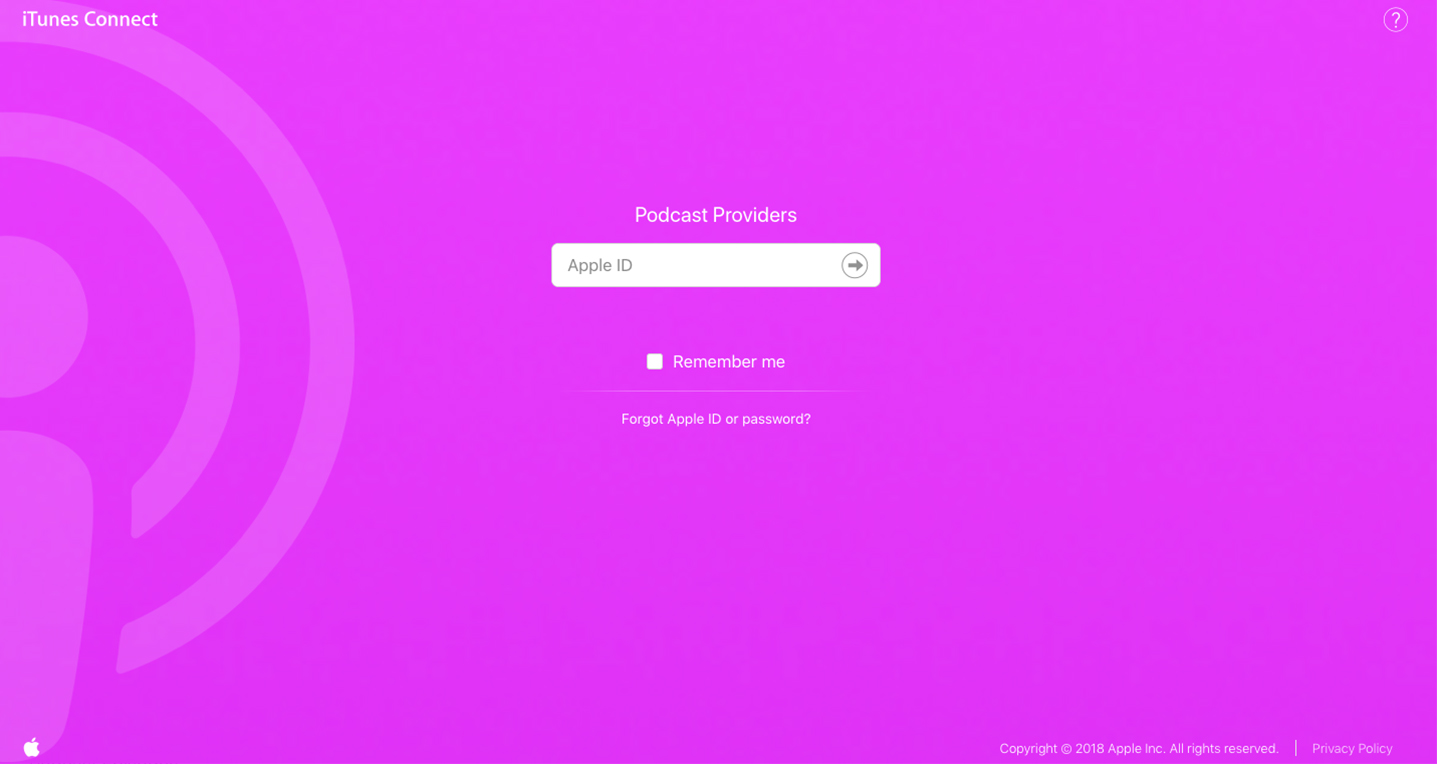
Step 1 – Go to Podcasts Connect (iTunes Connect) and log in with your Apple ID
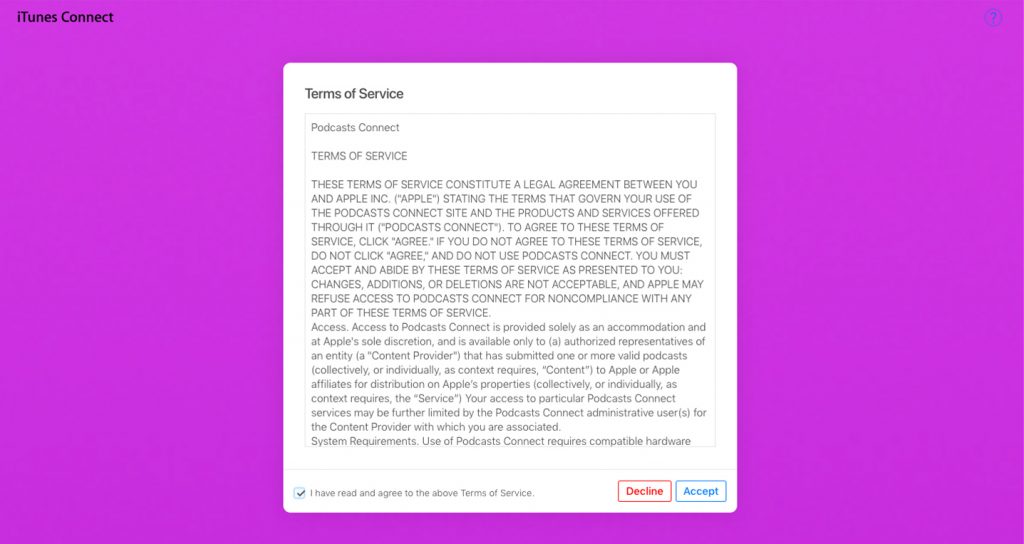
Step 2 –If it is your first time logging into Podcasts Connect you'll need to agree with the Terms of Service.
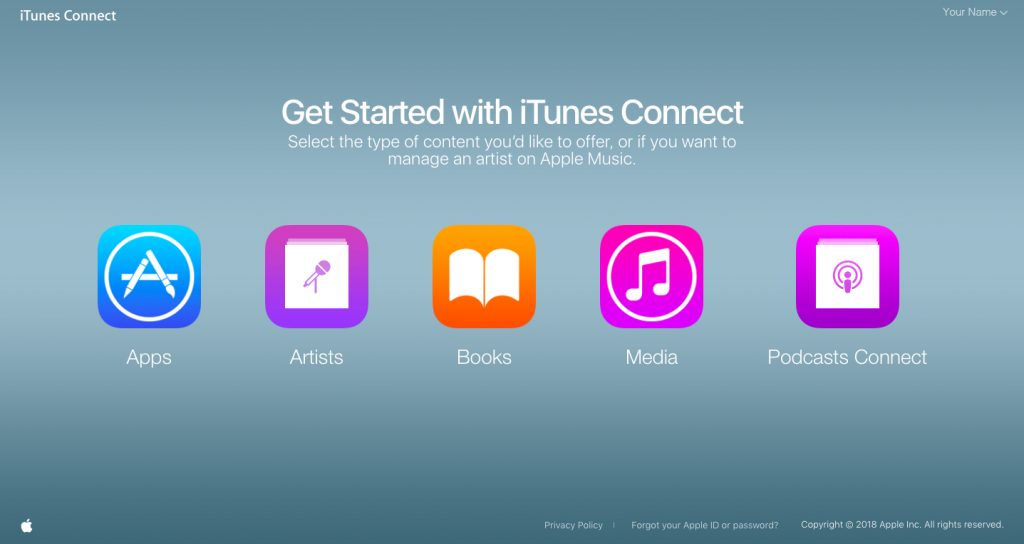
Step 3 –Click the Podcasts Connect icon on the right side of the Get Started with iTunes Connect screen.
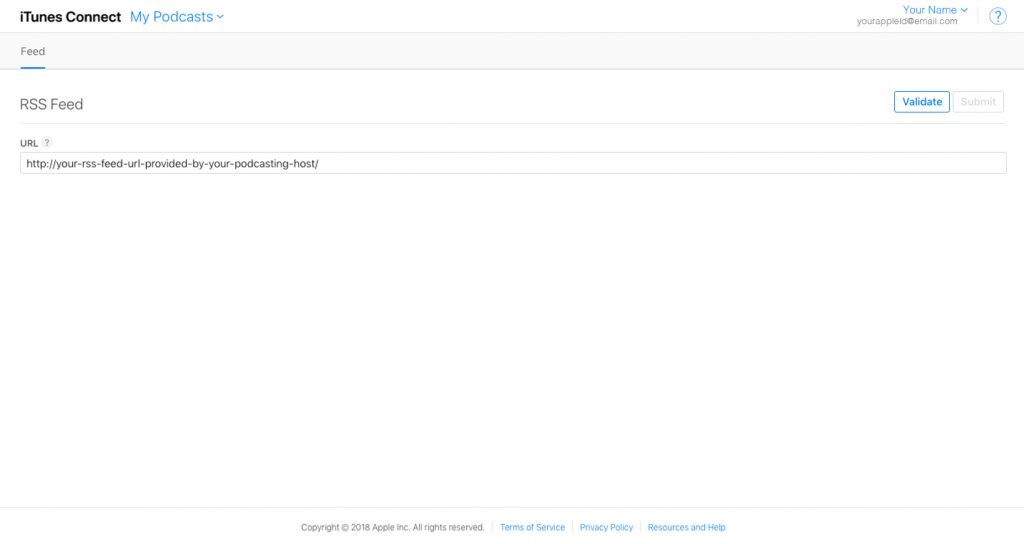
Step 4 – Enter the RSS Feed provided by your podcasting host into the URL field and click the Validate button at the top right corner of the screen.
- To find your RSS Feed on Soundcloud, follow this: Settings -> Content. Your RSS feed will be the first thing you see on the Content page.
Step 5 – All of your podcast data should be pulled from the RSS feed and will be displayed on screen. If everything checks out the status should say Prepared for Submission. Click the Submit button at the top right corner of your screen.
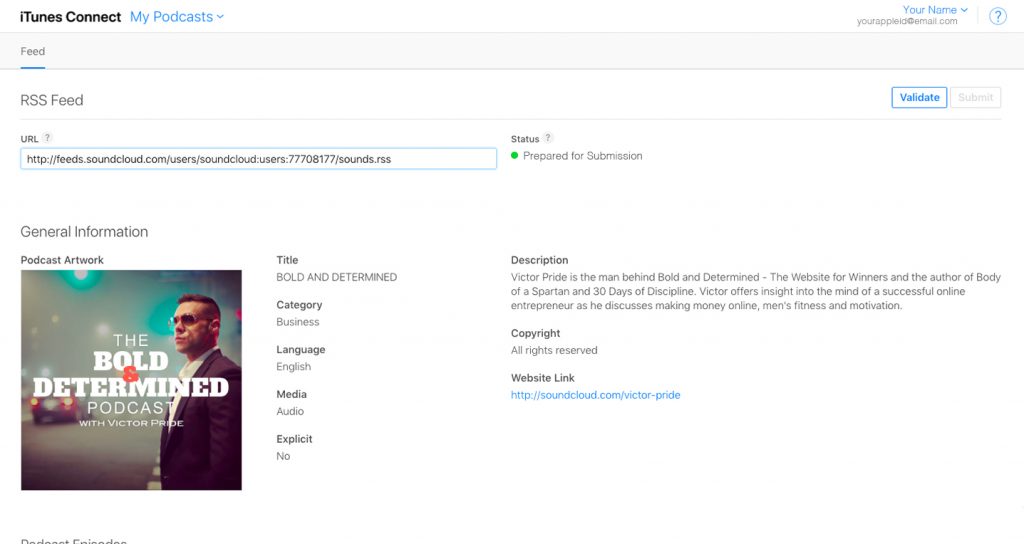
That's it. You've submitted your podcast to iTunes. It will need to go through an approval process (usually a matter of hours) and once approved you'll be notified via the email address affiliated with your Apple ID.
Note - In Step 4 if the status says Failed Verification there should be one or more error messages explaining the issue. Open another browser tab and correct these at your podcasting host before returning and attempting to validate again.
Congratulations! Your podcast should now be live (or nearly live) on iTunes.
But what if your audience prefers YouTube?
Glad you asked…
How To Get Your Podcast On YouTube
YouTube is a video medium. To get your podcast onto YouTube you will need to do 2 things:
- Sign up for a YouTube account and
- Create a video of your podcast.
Creating an account at YouTube should be self-explanatory. Creating a video is a bit more difficult, but still quite easy.
Let's take a look at the steps involved to create a video for your podcast (I'll show you the easiest way).
All video editing software is drag and drop. Essentially all you will need to do is drag and drop your MP3 podcast and drag and drop whichever photo you wish to use. This will create a video that you can upload to YouTube.
If you already use Apple products you probably have iMove installed on your computer. To create your video with iMovie check out this resource:
If you do not have a mac, or don't like iMovie, I recommend the free video editing software called OpenShot Video Editor.
I will show you how to create a simple video using the free OpenShot video editing software.
Step 1 - Download OpenShot and open the program
Step 2 - Drag and drop your MP3 file and the photograph you wish to use into the left-hand section of your OpenShot screen
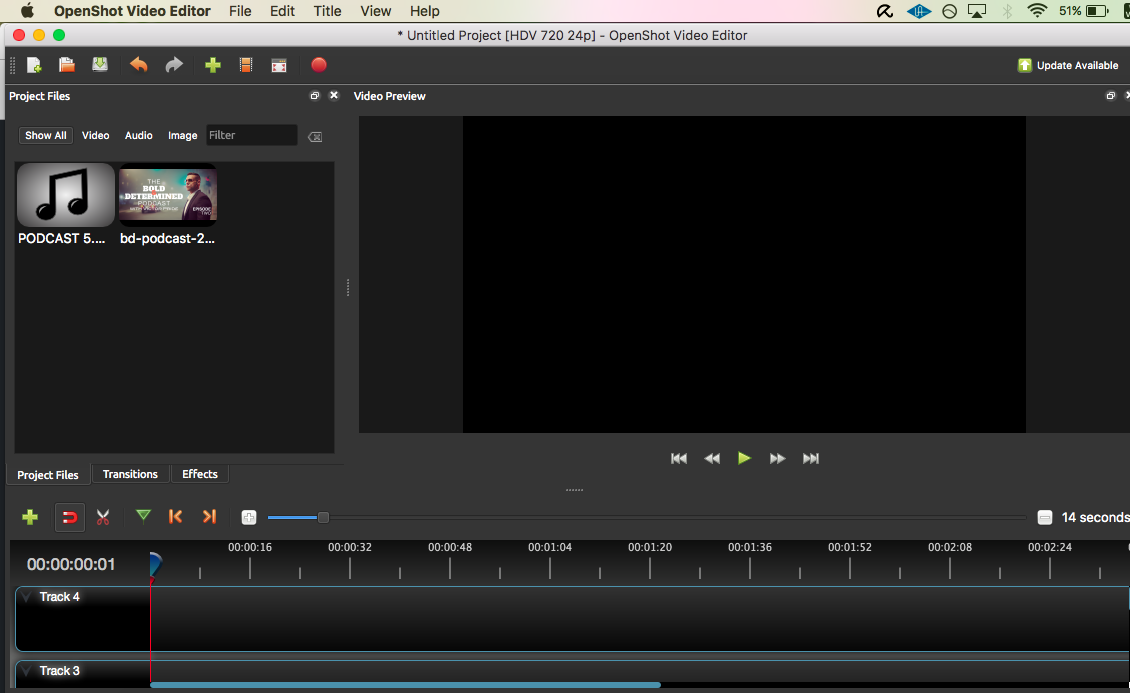
Step 3 - Drag your MP3 file to the section below entitled Track 4 (or 3 or 2 or 1 - any track is fine)
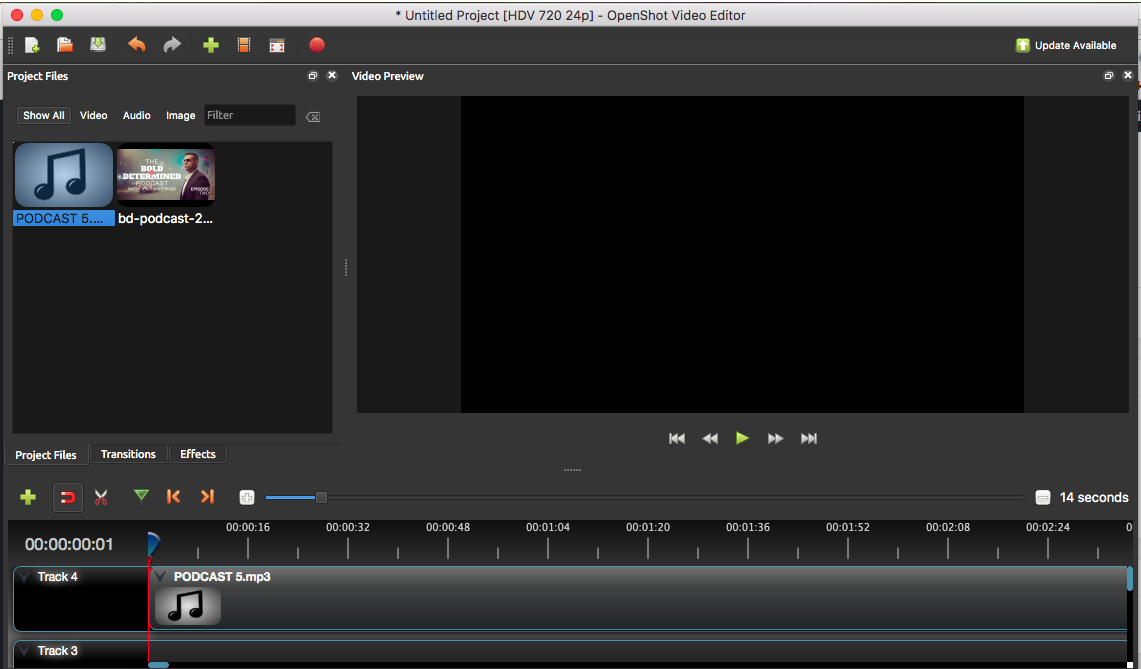
Step 4 - Drag your photograph file to the section below entitled Track 3 (or any other track that does not contain your MP3 file)
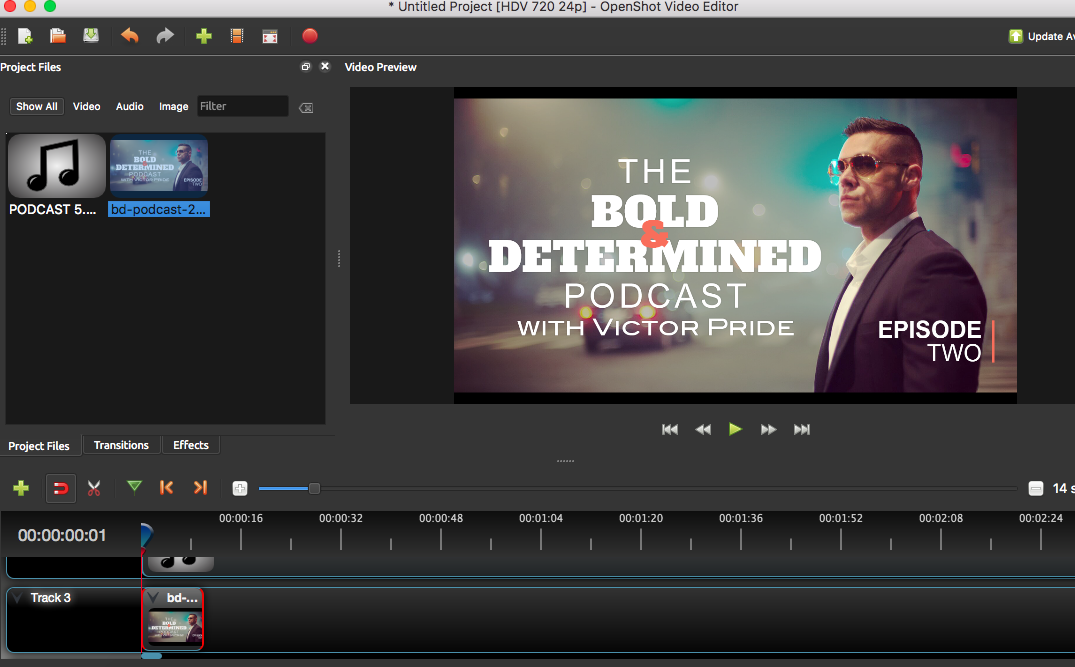
Step 5 - Extend the length of your photograph to match the length of your MP3 file.
Click the RED LINE on the right end f your photograph track file and drag it until it perfectly matches the length of your MP3 track.
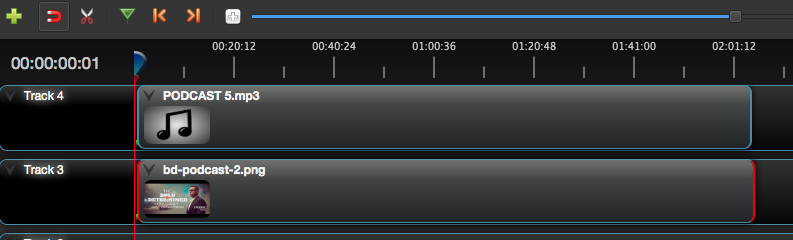
Step 6 - Click the PLAY button and watch both the beginning and end of your movie to ensure that the audio and the photograph sync up.
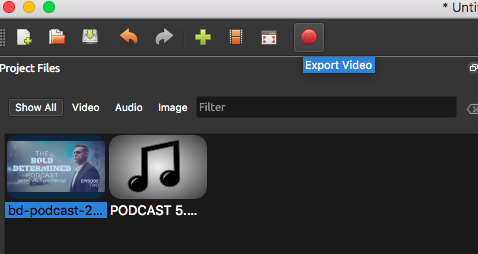
Step 7 - Click the RED CIRCLE and export your video.
Step 8 - Name your video and then click the EXPORT VIDEO tab
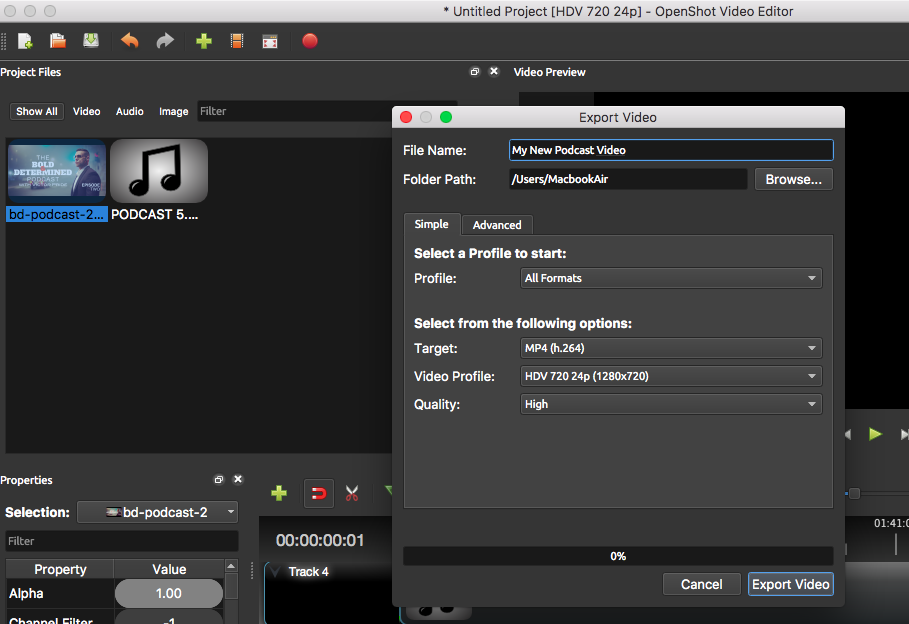
Step 9 - Wait for your video to render. After your video reaches 100% you will be able to upload this video directly to YouTube.
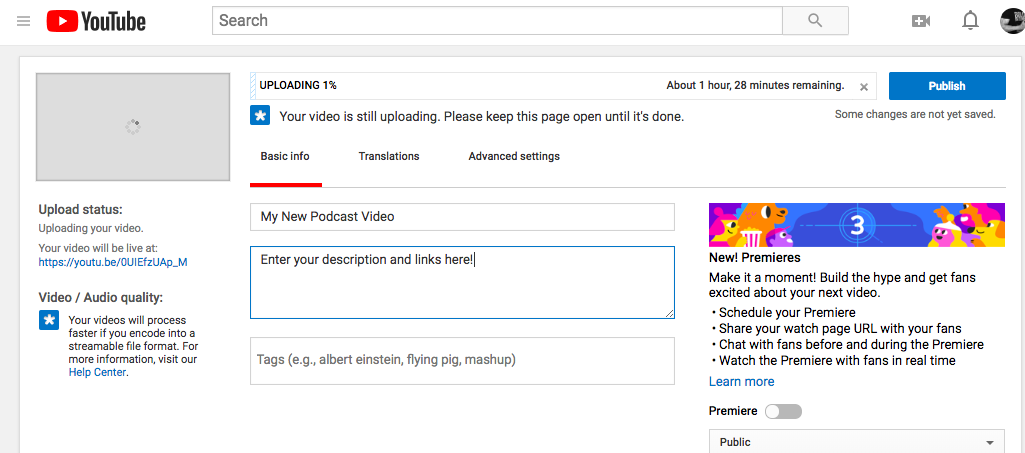
Step 10 - Go to your YouTube page and click the Upload video button. Upload the video file you have just created.
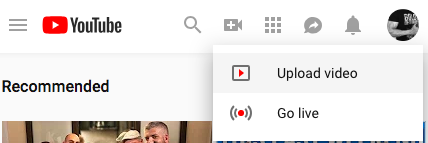
Step 11 - Name your video, click the publish button, and wait for it to go live.
That's it!
Now you podcast video is live. You can send the link to your podcast followers and they can watch/listen to your podcast on YouTube.
It's as simple as that!
You are now ready to record your own podcast, edit your podcast, and upload your podcast to the net where all people in the world can hear it.
I guess the only thing left to ponder is….
What will you talk about?
Until next time.
Your man,
-Victor Pride
PS - Don't forget to review part 1 and part 2 of this “How To Podcast” series to learn the nitty-gritty details for recording your podcast.
PPS - If you start your own podcast, leave a comment below and let us all know where we can hear it!
This series of articles is the definition of how to create a superb quality no-fluff “How To” article.
Very specific instructions, no hyper-technical slang, literally a step-by-step guide with the proper photos, from the absolute beginning to the final step.
Excellent!
Thank you for these posts. I’ve been getting into being interviewed in podcasts which is what I want to do for a while before I start to record my own. My speaking voice is a little soft so that’s what I’m trying to work on. I hear other amateur podcast hosts and interviews with terrible audio, they speak too fast, mumble their words together and I definitely never want to be one of them.
Hey Victor, great stuff as always. Would you be willing to add another article to this on how to add background music and sound effects to a podcast to make it more lively and professional?
Keep up with the truth.
Great series. Do you think podcasts are more popular than reading blogs?
Hey Vic,
This podcast series motivated me to get started on my own. The tips you give in “How To Start Your Own Podcast Part 3” was crucial to making this podcast sound much more professional.
The first one definitely had some imperfections, but I’m pumped to make a much better second episode.
https://soundcloud.com/thekingjackoffpodcast
Thanks again for the motivation brother.
Hammad says
Hi Vic
My first time commenting but I’ve been reading your blogs for the last 4/5 years
Thanks to these articles I’ve started my own podcast called MMA Diagnosis
If your a combat sports fan check it out
https://youtu.be/qwx1i5hQMbY
https://soundcloud.com/mmadiagnosis/episode-1-postfight-fury-vs-wilder-ufc-231-preview
Follow us on insta : @mmadiagnosis
Twitter : @mmadiagnosis
Thanks for the help!!!
Vic,
Is it better to wait until you have a following before you start a podcast? Is it better to do blogging/writing/youtube first, get a following, and then add in the podcast later?
Appreciate everything. Got 1 week left on Monk Mode.
If you end goal is to start a podcast then go ahead and do it. If it’s a secondary goal then you can wait until you have an audience.